Importing resources
Upon launching the game and agreeing to the terms, you should be greeted with this screen. 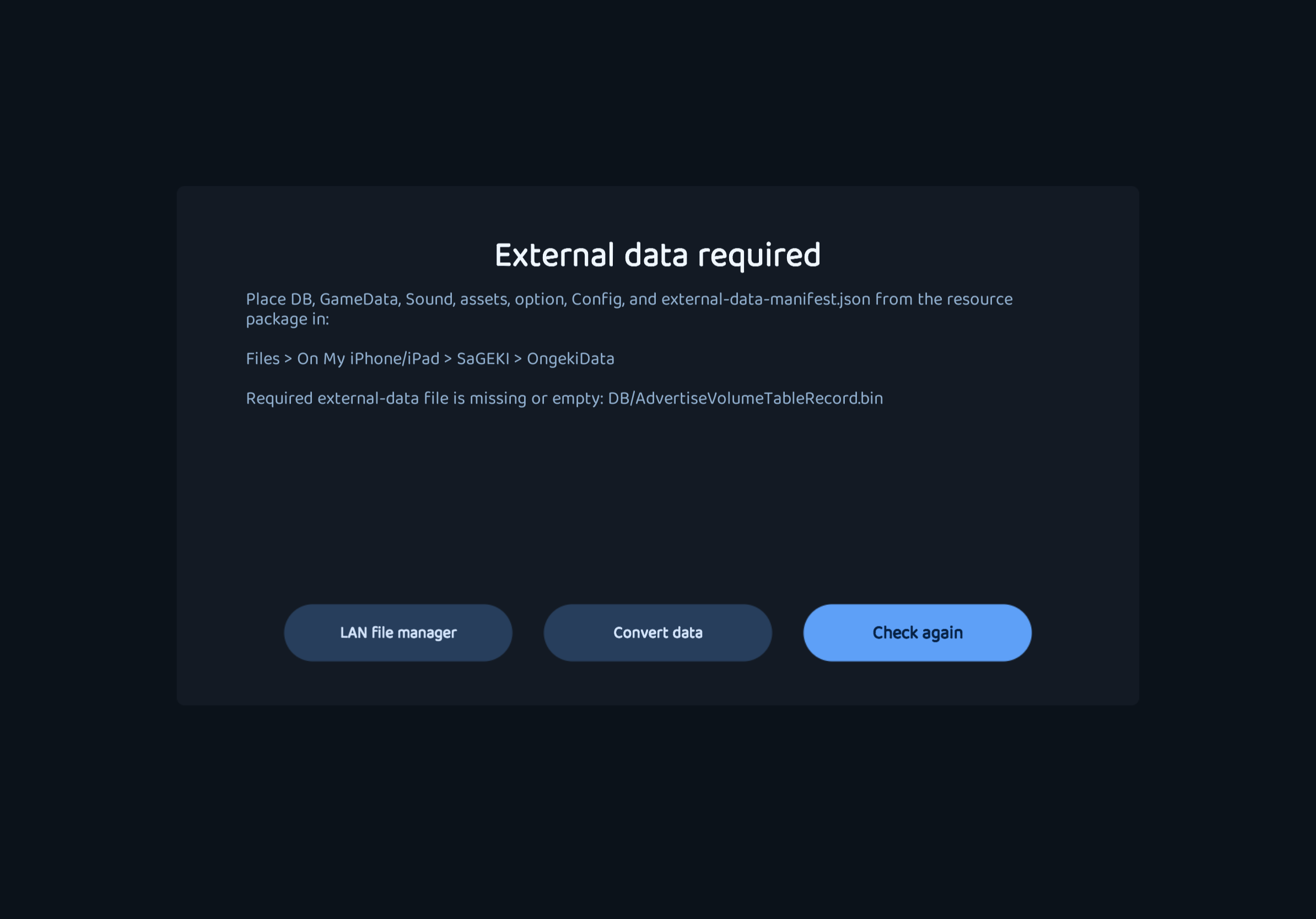 Depending on your platform of running this game, the importing process varies.
iOS
While possible to do it solely on-device, we suggest connecting to a computer due to poor file management implementation of Apple's File app shipped with iOS.
When connected to a computer, import the extracted resource files via Apple Devices (Windows), iTunes (Windows) or Finder (macOS) to the SaGEKI app directory. In iTunes, it is in File Sharing section; in Apple Devices and Finder, it is in Files section.
Whether you are extracting on-device or not, place the resource files inside SaGEKI/OngekiData.
After placing the file, the folder structure should look similar to this:
SaGEKI(App Root)
├─ SaGEKI
├─ OngekiData
│  ├─ Config
│  ├─ option
│  ├─ DB
│  │  ├─ AdvertiseVolumeTableRecord.bin
│  │  └─ ...
│  ├─ ...
│  └─ assets
├─ Unity
└─ Sentry
Android
Similar to iOS, the resource files should be extracted to (/emulated/(Android UID)/) Android/data/jp.anontokyo.SaGEKI/files/Documents/OngekiData.
After placing the file, the folder structure should look similar to this:
jp.anontokyo.SaGEKI/files
├─ SaGEKI
├─ Documents/OngekiData
│  ├─ Config
│  ├─ option
│  ├─ DB
│  │  ├─ AdvertiseVolumeTableRecord.bin
│  │  └─ ...
│  ├─ ...
│  └─ assets
├─ Unity
├─ il2cpp
├─ log
└─ Sentry
If the structure matches, then click "Check again" and you are good to go!